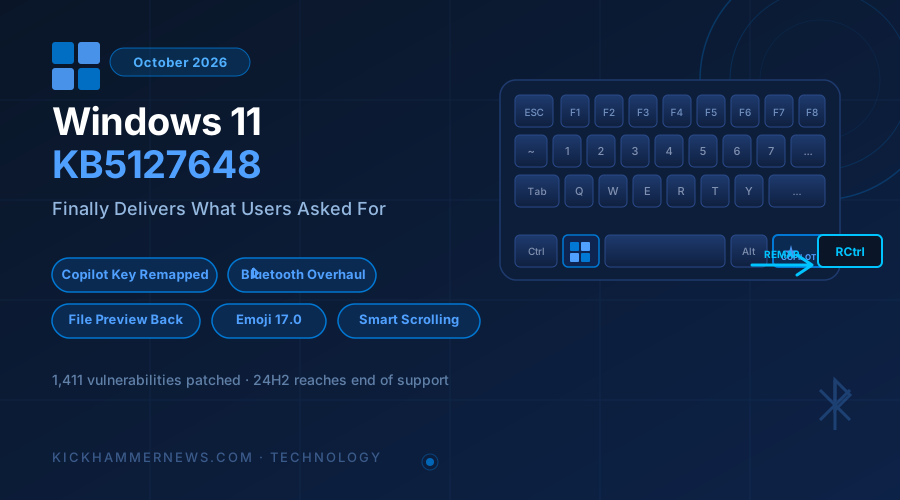
October 17, 2026 — When Microsoft shipped Windows 11 KB5127648 on Patch Tuesday, October 13, the headline number was 1,411 vulnerabilities patched across the platform. But buried beneath that security avalanche was something Windows enthusiasts had been waiting years to see: the Copilot key on their keyboards can finally do something other than launch Copilot.
That single change — the ability to remap the Copilot key to the Right Ctrl or Context Menu key without any third-party software — may seem modest on paper. In practice, it represents a meaningful pivot in how Microsoft thinks about the hardware it has championed. After shipping laptops with a dedicated AI button since early 2024 and insisting it was non-negotiable, Microsoft has quietly acknowledged that user choice matters.
The Copilot Key Story: From Immovable to Configurable
When manufacturers first rolled out Copilot key–equipped keyboards in 2024, the backlash from power users was immediate. The key sat where many users expected a Right Ctrl key, breaking muscle memory developed over decades of keyboard usage. Enthusiasts, developers, and accessibility users who relied on keyboard shortcuts found the change disruptive with no recourse.
Microsoft’s decision to add remapping support — accessible via Settings > Bluetooth & devices > Keyboard — is more than a convenience update. It signals a growing recognition that the AI integration push, however sincere, cannot steamroll basic usability expectations. The caveat worth noting: remapping the key to Right Ctrl may interfere with certain RCtrl + Win keyboard shortcuts, so users should test their specific workflows before committing.
Bluetooth Gets a Long-Overdue Overhaul
If the Copilot key story is about symbolism, the Bluetooth improvements in KB5127648 are about real-world reliability — and the changes are extensive.
The update addresses a laundry list of Bluetooth frustrations that have accumulated since Windows 11’s launch. Volume changes during calls now properly surface the volume flyout instead of silently adjusting. Connection state indicators are more accurate, meaning the Bluetooth icon in the system tray will actually reflect whether a device is connected or not — a problem that had persisted for years on some hardware configurations.
The Bluetooth settings page itself received stability improvements, and the toggle that would sometimes show the radio as “on” when it was physically disabled has been fixed. For users who work with Classic audio accessories, microphone reliability is improved. A crash code — specifically 0x139 — that could occur during Bluetooth audio streaming has been resolved, as have reliability issues with LE Audio and Shared audio features.
These aren’t glamorous changes, but they reflect the kind of sustained maintenance work that defines whether an operating system is genuinely trustworthy for professional use. Bluetooth reliability issues have long been a point of comparative criticism when users evaluate Windows against macOS, and this batch of fixes meaningfully closes the gap.
File Explorer Preview: Restored, With Caveats
One of the more frustrating Windows 11 regression stories ends with KB5127648. Since October 2025, downloaded files — including PDFs — could not be previewed in the File Explorer preview pane, the result of a security change that blocked the behavior to prevent drive-by exploits from preview rendering.
A full year later, Microsoft has restored preview functionality for PDF files and other downloaded content. HTML files remain an exception for security reasons, but the update adds a “Preview anyway” button for users who consciously choose to override the restriction on a per-file basis. The Home tab in File Explorer also received a quality-of-life improvement: the Recent and Favourites sections now remember whether they were collapsed, eliminating the need to re-collapse them every session.
It’s a small thing. Users will barely notice it. But small frictions compound, and removing them is exactly the kind of iterative improvement that separates a polished operating system from one that merely functions.
Emoji 17.0: The Distorted Face Cometh
Yes, we’re covering Emoji 17.0 in a professional technology publication, and no, we are not apologizing for it.
Emoji 17.0 debuts in this update with three new additions: a distorted face, a fight cloud, and a hairy creature. Microsoft has also refined the designs of several existing emoji for improved legibility and expressiveness. For developers and content creators who work across platforms, keeping emoji sets current matters for ensuring their communications render consistently on modern devices.
Access the full panel with the Windows + Period shortcut. For organizations that have been wondering when to standardize on the new emoji set, October 2026 is the answer for Windows 11 users.
Precision Touchpad Gains Intelligent Edge Scrolling
For users on laptops — which is increasingly the dominant Windows form factor — KB5127648 ships two new precision touchpad gestures that address a long-standing navigation limitation.
First: one-finger vertical scrolling from the left or right edge of the touchpad. This mirrors behavior that some macOS laptop users have used for years and makes navigation in document-heavy workflows meaningfully more fluid. Second: Automatic scrolling, which continues scroll motion while a finger rests at the edge of the touchpad — useful for navigating long documents or web pages without repeated swipes.
Both features are configurable under Settings > Bluetooth & devices > Touchpad and are available on precision touchpad hardware. Users on older or budget trackpad hardware may not see the options if their device doesn’t meet the precision touchpad specification.
“Open Apps Maximized”: A Subtle Accessibility Win
New in this update is a toggle under Settings > Accessibility > Visual effects labeled “Open apps maximized.” When enabled, every application opens maximized rather than in a floating window. This sounds like a niche preference, but it has meaningful implications for users with visual impairments, users on small displays, and workflows that benefit from full-screen discipline.
One important behavioral note: toggling the setting off does not restore previous window sizes. Users who want to return to floating windows will need to resize applications manually. Microsoft should likely surface this caveat more prominently within the settings UI, but the feature itself fills a legitimate accessibility gap.
What’s Going Away: The PC Migration Tool and 24H2
KB5127648 also marks the end of two things. First, Windows 24H2 has reached its end of support. Users still on the 24H2 branch should update to 25H2 or 26H2; this October release is the last cumulative update for that version.
Second, the offline LAN-based PC-to-PC migration tool has been removed. Microsoft’s recommended replacement is Windows Backup, which depends on OneDrive for cloud-based file transfer. For enterprise administrators managing network migrations in air-gapped or bandwidth-constrained environments, this transition warrants planning. The OneDrive dependency may complicate workflows that the LAN-based tool handled natively without cloud intermediary.
The removal reflects Microsoft’s continued push to anchor Windows workflows to its cloud services — a strategy that works well for consumers and hybrid enterprise environments, but creates friction at the edges of the ecosystem.
The Bigger Picture
Windows 11’s October 2026 update isn’t a landmark release. There’s no single feature that will define a before-and-after for enterprise IT. What it is, however, is evidence of a mature update cadence — one that addresses security at scale (1,411 vulnerabilities is a historic single-update number), while simultaneously delivering meaningful user experience improvements across Bluetooth, file management, touchpad ergonomics, and accessibility.
The Copilot key remapping story is perhaps the most telling detail in the release. Microsoft has made significant bets on AI-first hardware over the past two years, and those bets have not always respected what users actually want from their keyboards and interfaces. The willingness to revisit that decision — quietly, without fanfare — suggests the company is listening more closely than the public narrative sometimes implies.
That may be the most important feature in this update: not a crash fix, not an emoji, but a small indication that the feedback loop between users and Windows product development still works.
KB5127648 is available through Windows Update, Windows Server Update Services, and the Microsoft Update Catalog. The x64 offline installer is approximately 5 GB; the ARM64 package approximately 4.9 GB. Organizations should test against Always On VPN configurations before broad deployment.