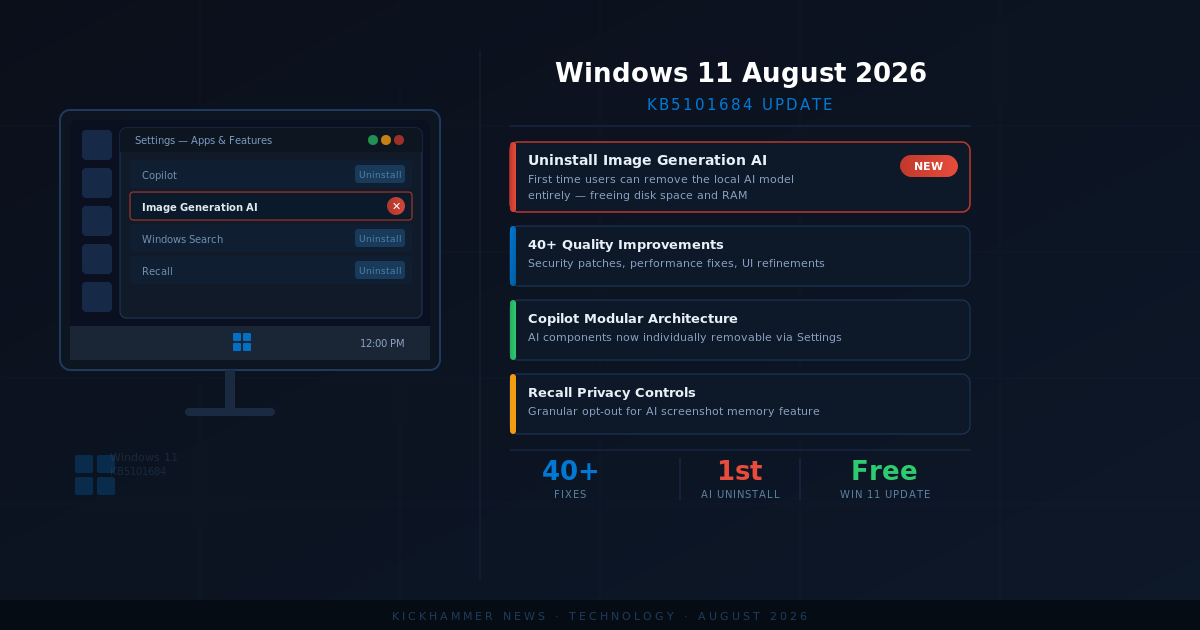
Microsoft’s KB5101684 patch arrives August 11 with over 40 improvements, including a landmark option to remove the Image Generation AI model from Copilot+ PCs.
For the past year, Windows 11 users have watched AI features accumulate on their machines with limited ability to push back. With the August 2026 Security Update — KB5101684, rolling out to versions 24H2 and 25H2 on August 11 — Microsoft is making a subtle but significant concession: it will now let Copilot+ PC owners uninstall at least one of those AI components. Combined with dozens of practical quality-of-life fixes, this update may be the most user-centric monthly patch Microsoft has shipped in 2026.
Reclaiming Control Over AI
The headline feature is deceptively simple. Buried in Settings > System > AI Components, Copilot+ PC users will now find the option to uninstall the Image Generation AI model. It is not a sweeping “disable all AI” toggle — those remain absent — but it is the first time Microsoft has allowed the removal of a bundled AI component through standard settings rather than requiring registry edits or enterprise policy scripts.
The timing is not accidental. Public sentiment around mandatory AI features in Windows has soured considerably over the past twelve months. Microsoft faced substantial criticism when Recall was reintroduced, when Copilot Podcasts launched as an opt-out experience, and when AI-generated content began appearing in taskbar widgets without user consent. The ability to uninstall Image Generation is a small step toward user agency, but analysts and enthusiasts are watching closely to see whether it signals a genuine policy shift or a one-off concession.
If Microsoft continues this trajectory — giving users granular control over which AI models live on their systems — it could meaningfully reduce the friction that has made some users reluctant to upgrade to Copilot+ hardware in the first place.
Windows Hello Goes Wider
Alongside the AI uninstall option, the August update extends Windows Hello Enhanced Sign-in Security (ESS) to external fingerprint readers. Until now, ESS — which isolates biometric authentication in a secure memory enclave separate from the operating system — was limited to devices with built-in sensors, typically meaning Copilot+ PCs with dedicated NPU hardware.
With KB5101684, any Windows 11 machine running 24H2 or 25H2 can pair an ESS-compatible USB fingerprint reader and get hardware-level protection that was previously exclusive to premium devices. Users can enable it under Settings > Accounts > Sign-in options using the “Enhanced sign-in security” toggle.
For enterprises managing a mixed fleet of desktops and laptops, this is a notable change. IT departments that wanted the security guarantees of ESS previously had to justify Copilot+ hardware purchases. External peripheral support opens a more affordable compliance path.
Voice Features Get Smarter
The August update brings meaningful upgrades to Windows 11’s voice tools. Voice Access, the hands-free navigation system, gains Voice Isolation — a speech processing mode that filters background noise and nearby conversations from microphone input before passing audio to the recognition engine. Users can choose between three modes in Settings > Voice Access > Improve speech recognition: full Voice Isolation (requires one-time voice setup), Remove Background Noise Only (suppresses ambient sounds without setup), or No Filtering for raw microphone input.
Voice Typing’s Fluid Dictation feature, meanwhile, is now disabled by default for new users. Microsoft has also added contextual teaching tips that appear the first time users invoke dictation, addressing a common complaint that the feature activated unexpectedly and was difficult to dismiss.
Voice Access also gains Korean language support with this update, extending hands-free usability to a wider international audience.
File Explorer Fixes Years-Old Annoyances
File Explorer receives a cluster of overdue improvements. In Details view, file sizes will finally display in appropriate units — KB, MB, or GB — rather than forcing every value into kilobytes. A 4.5 GB video will now read “4.58 GB” instead of the cryptic seven-digit kilobyte value that has been a common complaint since Windows 11 launched.
Tabbed navigation also becomes more consistent. Middle-clicking a folder in the address bar or the Home page now opens it in a new tab, matching behavior users expect from modern browsers. Microsoft has also fixed a gray flash that appeared while the Home page loaded and resolved a scroll-to-top bug that would interrupt navigation.
Thumbnails in the Recommended section are sharpened, and several stability fixes address explorer.exe crashes when opening jump lists, switching between Task View and virtual desktops, and accessing recent files. One particularly impactful fix corrects an issue where files stored on DFS-mapped network drives were incorrectly flagged as originating from the internet, triggering unnecessary security warnings and applying “Mark of the Web” metadata to copied files — a problem that generated real workflow disruptions in enterprise environments.
Search Gets Smarter About Typos
Windows Search has been refined to handle imperfect queries more gracefully. The engine now supports searches as short as two characters and does a better job recognizing partial application names and common typos. Settings search has been tuned to surface more relevant options at the top of results rather than burying them beneath less useful matches.
These improvements are incremental, but they address a sustained criticism of Windows Search: that it has historically been brittle about anything other than exact-match queries.
Power Settings, Widgets, and Everything Else
Microsoft is making power management settings more consistent. Customizations to display timeouts, sleep and hibernate timers, and laptop lid behavior now apply across every power plan rather than only the currently active one. The Energy Saver battery percentage threshold — which Microsoft removed in a previous update — is also returning to Settings > System > Power & battery.
The Lock screen gets a quieter default with only the Weather widget visible for new users. Taskbar notification badges switch from red to the system’s current accent color, a cosmetic change but one that many users will appreciate.
The Account Control flyout — the panel that opens when you click your profile in the Start menu — gets a redesigned layout that surfaces Microsoft 365 subscription status, OneDrive storage usage, and account benefits in a single view.
Rounding out the update are improvements to Remote Desktop clipboard reliability, faster printing for IPPS printers, better DHCP lease renewal handling in Modern Standby, and updated Secure Boot certificates that continue rolling out to consumer devices as the original certificates from most machines phase out.
What This Update Tells Us About Microsoft’s Direction
KB5101684 is not a transformational update. It does not ship a new AI feature, does not unlock Windows 11 26H2’s upcoming movable taskbar, and does not address the broader debate about whether Microsoft is pushing AI onto users too aggressively. What it does do is clean up a large number of real-world paper cuts while nudging the AI control dial — even slightly — toward user choice.
The Image Generation uninstall option will not satisfy users who want a comprehensive AI opt-out. But it suggests Microsoft is at least listening to the feedback. If the company continues adding granular controls in subsequent monthly updates, the cumulative effect over the second half of 2026 could shift the narrative around Windows 11’s AI posture considerably.
The August 2026 Security Update targets Windows 11 versions 24H2 and 25H2. Microsoft typically begins Patch Tuesday deployments at 1 PM Eastern on August 11. Features will roll out gradually using Controlled Feature Rollout, so not every change will be visible immediately after installation.