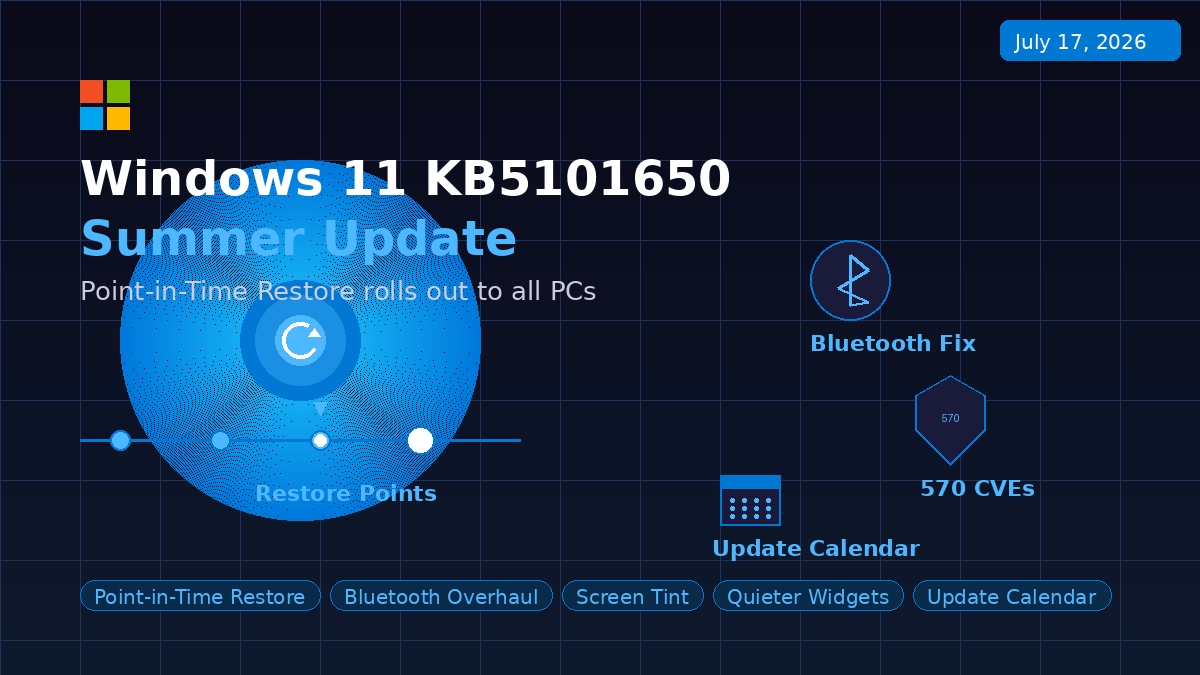
Microsoft’s July 2026 Windows 11 update is one for the record books — and not just because it fixed a record-breaking 570 security vulnerabilities. KB5101650, which officially began rolling out to all eligible Windows 11 PCs this week, brings five genuinely useful quality-of-life improvements that have been in testing for months. Some are already live on updated machines; others are arriving through Microsoft’s gradual rollout over the coming days. Here’s a detailed look at what’s in the package and what it means for everyday Windows users.
Point-in-Time Restore: An Undo Button for Your Entire PC
If there’s a single feature that defines the July 2026 update, it’s Point-in-Time Restore. After spending months in Windows Insider testing since late 2025, the full-system recovery tool is now shipping enabled by default to all Windows 11 Home and Pro machines with system drives of 200GB or larger.
The concept is straightforward but the implementation is meaningful. Once Point-in-Time Restore is active, Windows automatically takes block-level snapshots of your entire OS volume at configurable intervals — anywhere from every four hours to every 24 hours — and retains those snapshots for up to 72 hours. If a driver update causes a blue screen, a newly installed application corrupts system files, or even a Windows update itself causes unexpected behavior, you can boot into the recovery environment, choose a snapshot from the last three days, and roll the entire machine back to that moment.
This is a substantial upgrade over the System Restore tool that Windows has carried for decades. The old System Restore only captured system files, the registry, and drivers. Point-in-Time Restore captures everything on the drive — including personal files — using Volume Shadow Copy Service, the same technology that powers enterprise backup systems. It runs silently in the background without interrupting your work, and it operates completely offline with no cloud dependency or subscription requirement.
There are real trade-offs to acknowledge. The feature requires up to 50GB of reserved storage, which is why it only activates automatically on drives of 200GB or more. Any changes made after a captured snapshot — files, passwords, installed apps, certificates — are lost if you roll back to that point. And it starts disabled on machines below the storage threshold and on most virtual machines. But for the vast majority of everyday Windows 11 users, this is the closest the OS has ever come to giving them a true safety net. Find it under Settings > System > Recovery once it reaches your device.
Windows Update Finally Gets a Real Calendar
For years, pausing Windows updates meant clicking a dropdown with fixed options: pause for 1 week, 2 weeks, 3 weeks, up to 5 weeks. There was no middle ground — if you wanted to pause through a specific deadline, you had to calculate the closest option and hope it landed right.
KB5101650 replaces that dropdown with an actual calendar picker inside Settings > Windows Update. You can now choose any specific end date up to 35 days from today. Need to pause through a work trip that ends on a Tuesday? Pick that Tuesday. Have a product launch in 18 days and can’t risk a surprise reboot? Choose that exact date. The 35-day ceiling hasn’t moved, but the precision of the control has changed entirely. You can also re-pause by selecting a new date before the current pause window expires, as long as it stays within the 35-day limit.
Widgets Finally Stop Opening Themselves
Windows 11’s Widgets panel has long been a source of low-level frustration — brush a finger too close to the taskbar icon and the entire board would slide open, filled with MSN news headlines, clickbait thumbnails, and ad content you never asked for. The July update makes Widgets genuinely usable by changing a critical default: the panel no longer opens on hover.
The taskbar badge behavior is quieter now, with notification counts minimized out of the box and badge colors tied to your Windows accent color instead of attention-grabbing red. First-time users are taken directly to the Widgets dashboard on first launch instead of being funneled into the MSN feed. The lock screen, which previously showed a row of crowded cards for new users, now defaults to a single Weather widget. You can still configure everything back to the previous behavior in Widgets settings if you prefer it.
Screen Tint Brings Display Comfort to Windows Accessibility
Night Light has been in Windows for years, shifting the display warmer in the evenings to reduce blue light exposure. KB5101650 introduces Screen Tint, a more flexible accessibility tool that does something different. Rather than just adjusting color temperature, Screen Tint lays a full-screen color overlay across the display, giving you control over both the color and the intensity of the tint.
Six presets are available — including a Calm amber tone similar in spirit to Night Light — along with blue, green, and a few others. A custom color picker and an intensity slider let you dial things in precisely. For users who experience photosensitivity, migraines triggered by certain screen colors, or visual fatigue over long sessions, Screen Tint offers a software alternative to tinted glasses or third-party utilities. Find it under Settings > Accessibility.
The same update also quietly improves Magnifier, letting users type a specific zoom percentage directly into the Magnifier window rather than wrestling with a slider, and adds zoom increment settings directly inside the Magnifier bar.
Bluetooth Gets Its Most Comprehensive Fix in Years
Microsoft had already publicly pledged earlier in 2026 to make Bluetooth, audio, camera, and USB connections more reliable on Windows 11. KB5101650 makes good on a significant chunk of that promise, bundling improvements across microphone synchronization, device compatibility, audio stability, connection reliability, and device management — an unusually broad set of Bluetooth changes for a single update.
The most practical fix addresses mute state syncing. When you press the mute button on a Bluetooth headset, Windows now keeps that mute state synchronized between the audio mixer and the Hands-Free Profile. Before this fix, the headset’s mute indicator and what Windows actually understood about the microphone could fall out of sync, creating awkward moments on voice and video calls.
AirPods now appear faster in pairing mode, and Beats Studio Pro headphones get improved microphone reliability — a win for the large number of users who move between iPhones and Windows PCs with the same audio gear. Bluetooth LE Audio streaming, which underpins the Shared Audio feature for simultaneous audio across two sets of headphones, recovers more reliably after dropped connections and starts audio faster when the microphone is also active.
Phone Link picks up a notably thoughtful improvement: when you dial an outgoing call from a phone paired to your PC, audio now stays on the phone while it rings and only transfers to your PC once you answer on the PC’s side. Incoming calls from a paired phone also stay quiet on the PC if Do Not Disturb is active. This is Apple-Continuity-level call handoff behavior between Android and Windows, and it’s arriving without fanfare.
Under the Hood: 570 Security Fixes and a Storage Bug Resolution
Beyond the user-facing features, July’s update carries a record-breaking security payload. Microsoft patched 570 vulnerabilities this month, roughly four times the volume patched this time last year. The company attributed part of the increase to AI-assisted vulnerability discovery, with Executive Vice President Pavan Davuluri noting that AI tooling is accelerating the rate at which internal security teams identify flaws that previously went undetected.
Notable patches include CVE-2026-48561, a remote code execution vulnerability in Microsoft Copilot with a CVSS score of 9.6 that could allow unauthorized code execution over a network, and CVE-2026-50661, a BitLocker bypass that requires physical access but would allow an attacker to access encrypted data on a stolen machine.
KB5101650 also resolves a storage bug that had been quietly filling system drives for months. A file called CapabilityAccessManager.db-wal had been growing without being cleaned up properly, in some cases consuming hundreds of gigabytes of space. The fix is in this update, but machines that already accumulated large files will need to clear them manually.
One issue worth noting: Microsoft has blocked KB5101650 from reaching some Intel-based Dell laptops after reports of unexpected shutdowns, elevated heat, and battery drain caused by a conflict between the update’s USB-C Connection Manager component and Dell’s Intel Innovation Platform Framework driver. If you own a Dell laptop and haven’t seen the update offered yet, this is likely why. Microsoft is working on a resolution.
What’s Next for Windows Insiders
The July update also gives a clear view of what’s coming next. Microsoft has begun testing a cleaner Windows Search experience for Insider builds on the Experimental channel. The redesigned Search strips out MSN tiles, daily quizzes, trending searches, and sponsored shopping cards, replacing them with recent searches, clearly labeled results by source, and new privacy toggles to disable Bing web results and Microsoft Store suggestions. Local results now rank ahead of web results, meaning typing a partial app name actually surfaces the app first.
For users waiting on broader feature waves, the movable taskbar and resizable Start menu — two of the most-requested changes since Windows 11 launched — are also in Insider testing and expected to reach everyone later this year with the Windows 11 26H2 release.
For now, KB5101650 is available through Settings > Windows Update > Check for updates. Given the number of security fixes it carries alongside features like Point-in-Time Restore, there are few good reasons to leave it sitting in the queue.